
Installation and Startup
Check to make sure that the MicroSD Card is inserted into the writer. The MicroSD card should be included in the package with the writer. Please insert it now.
Connect your LightSpeed Neo to your computer using the included USB cable.
Momentarily press and hold the power button until the power light turns on, then release the power button.
Find and open the email that we sent to you for your Download for the LightSpeed Neo Software. Click the link in the email to go the the download page. If for any reason you cannot find this email, please reach out to support.
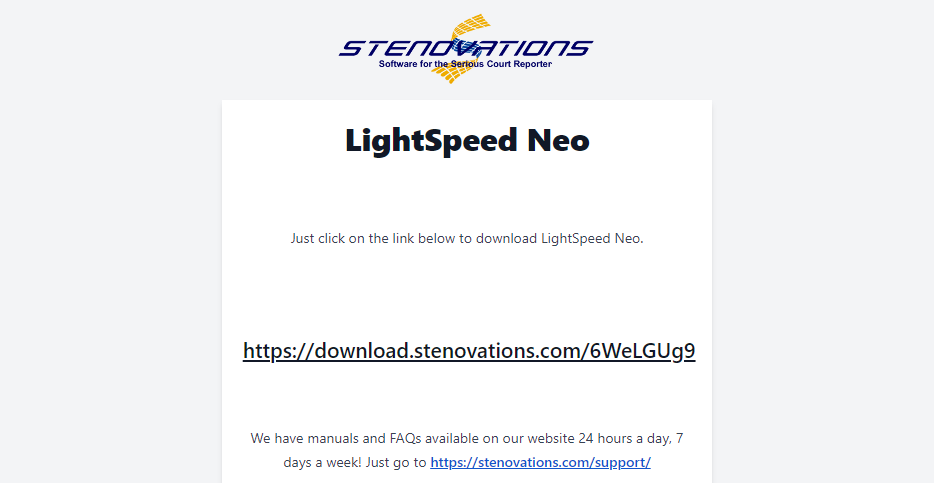
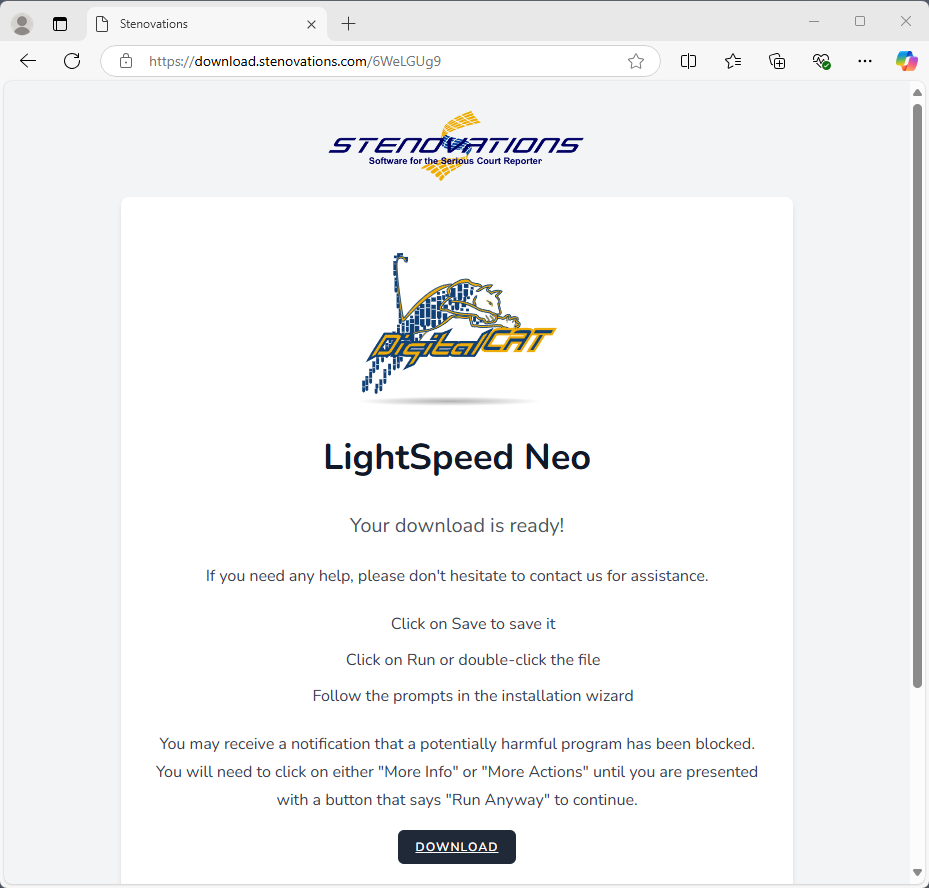
Click the "Download" button on the page to begin the download.
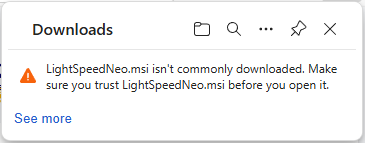
You may see a warning that this file isn't commonly downloaded. Click on "See More" in order to get more options.
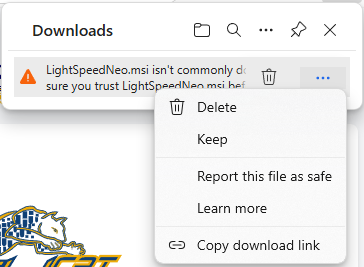
There will then be a trash can icon, and an ellipsis icon (three dots, "..."). Click on the ellipsis icon, then in the menu that pops up, click on "Keep".
You may see a warning saying that you should make sure you trust LightSpeedNeo.msi before you open it. Click on "Show More", and then on "Keep anyway".
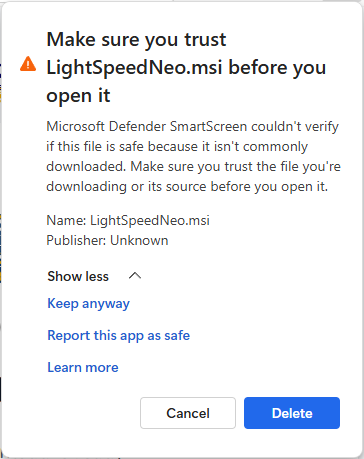
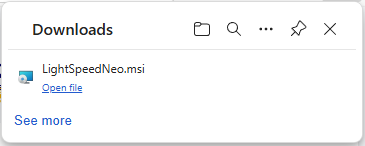
Allow the file a moment to finish downloading, and then click on "Open File".
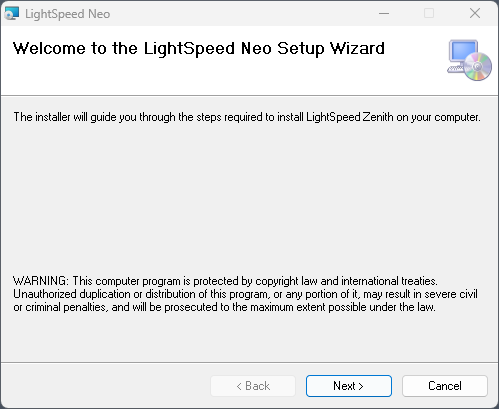
You will then see the LightSpeed Neo Installation Wizard. Click on "Next".
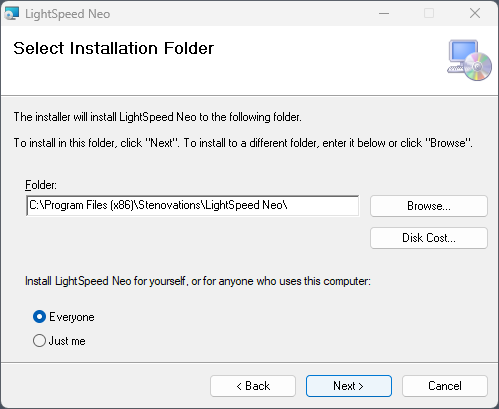
The installation wizard will then allow you to choose where to install the LightSpeed Neo software. Normally, you do not need to change any of these settings. Click on "Next".
The installer will then tell you that it is ready for installation. Click on "Next".
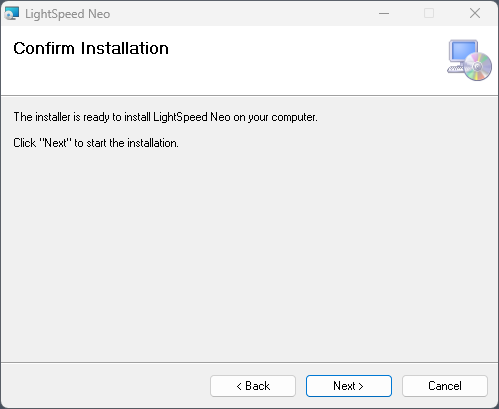
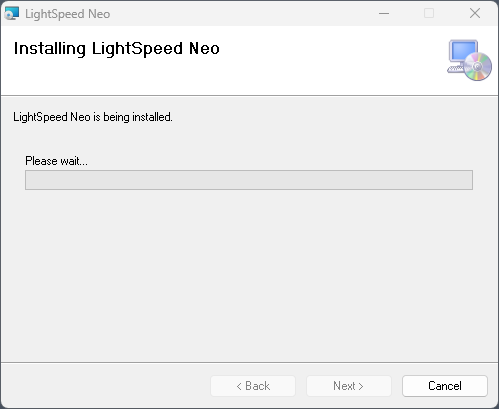
Wait for the installation to proceed. If you receive a prompt asking you if you'd like to run the program, click "Yes".
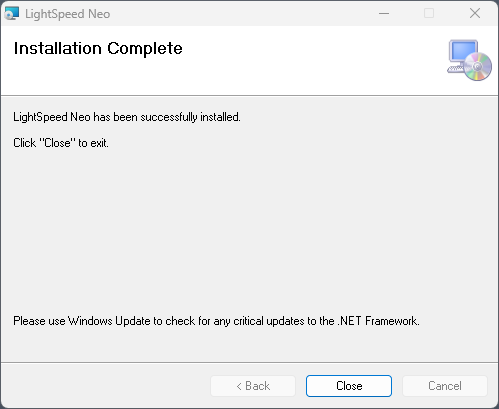
When the installation is complete, click on "Close".
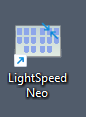
You should now have an icon on your desktop for the LightSpeed Neo software. You may also hear this referred to as the "LightSpeed GUI" or the "LightSpeed Neo GUI". Double click on this icon to start the software.
The LightSpeed Neo software should open. If there is a button in the bottom of the window that says "Stop" then you are ready to begin. If you see a button that instead says "Start", click on it, and it should change to say "Stop".
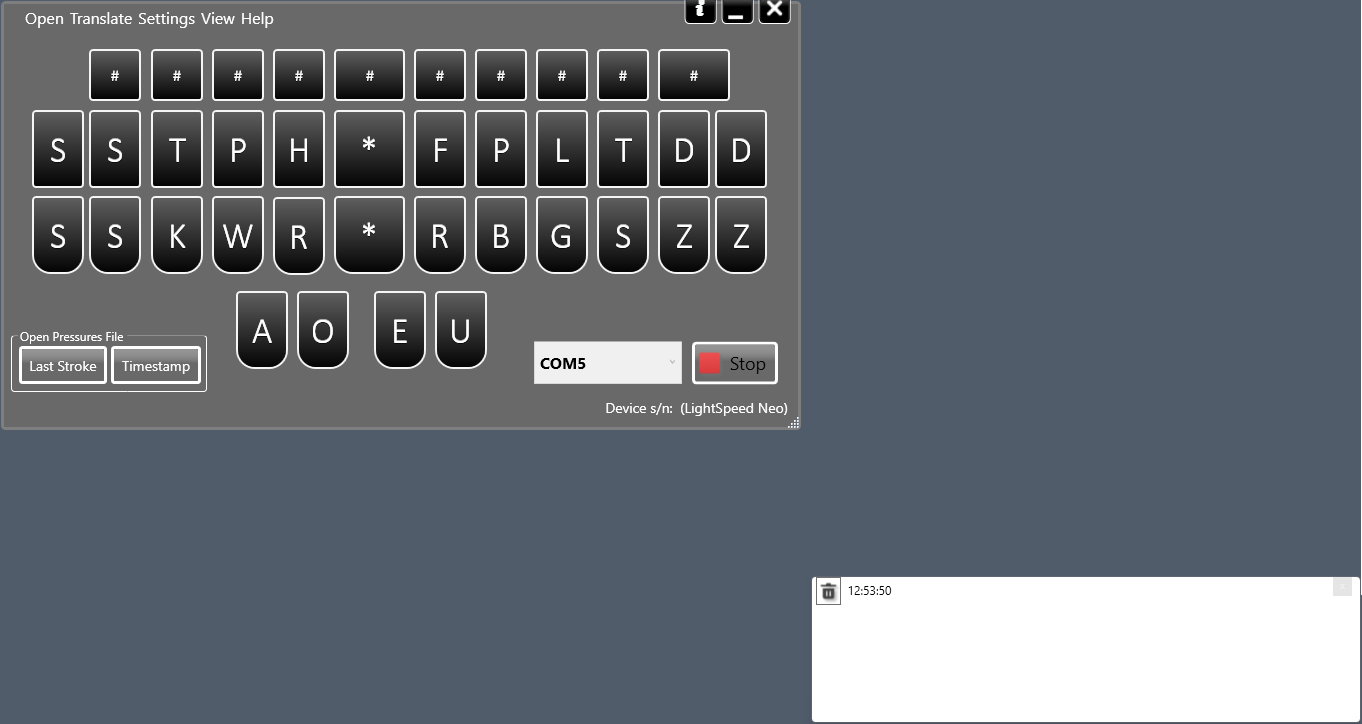
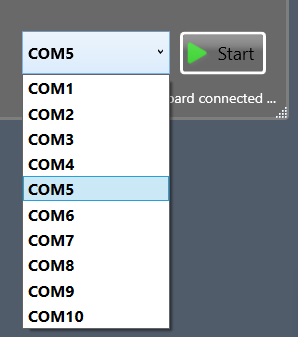
If you receive an error that says "Failed to create virtual serial com port", you may need to choose a different port number. You can select any different port number from the dropdown, and then try clicking Start again.
You are now ready to open your CAT software and continue to the next section, Translation.