
Network Editing
Overview
Network Editor is Digital CAT extension that allows for scopist to edit and attorneys to view transcript in realtime with court reporter. Actually court reporter's computer is network server and all connected users are clients, so its configuration is similar to any other client/server applications in local network (LAN).
The most simple way to configure Network Editor is to provide WiFi router to put all participants in a same local network, but of course client can be located outside LAN (in this case the configuration is more complex, because to provide access to court reporter administrator have to establish VPN connection inside local network or open ports on external router).
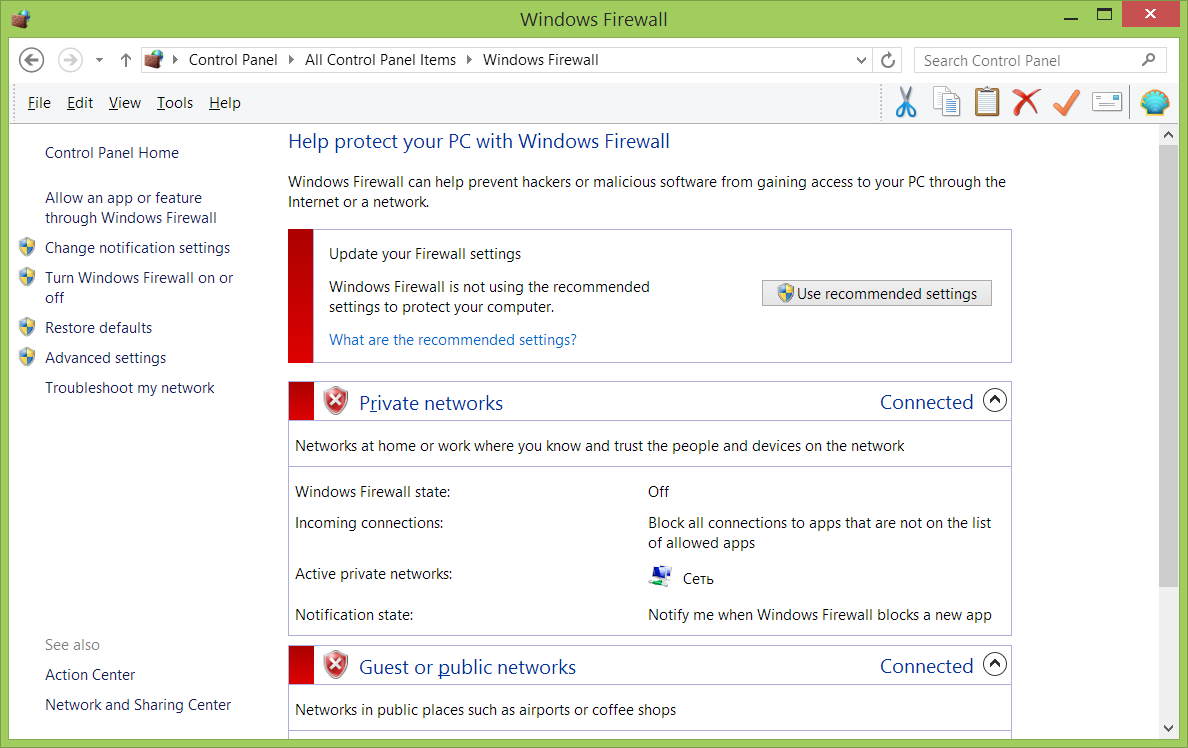
It is also highly recommended temporary turn off Windows firewall on reporter's computer, to allow other participants to connect to it (or open port in firewall, but turn it off is much simpler). (Fig. 1.1)
To do this open Control Panel > Windows Firewall (Fig. 1.1)
Configuring reporter's (server) computer
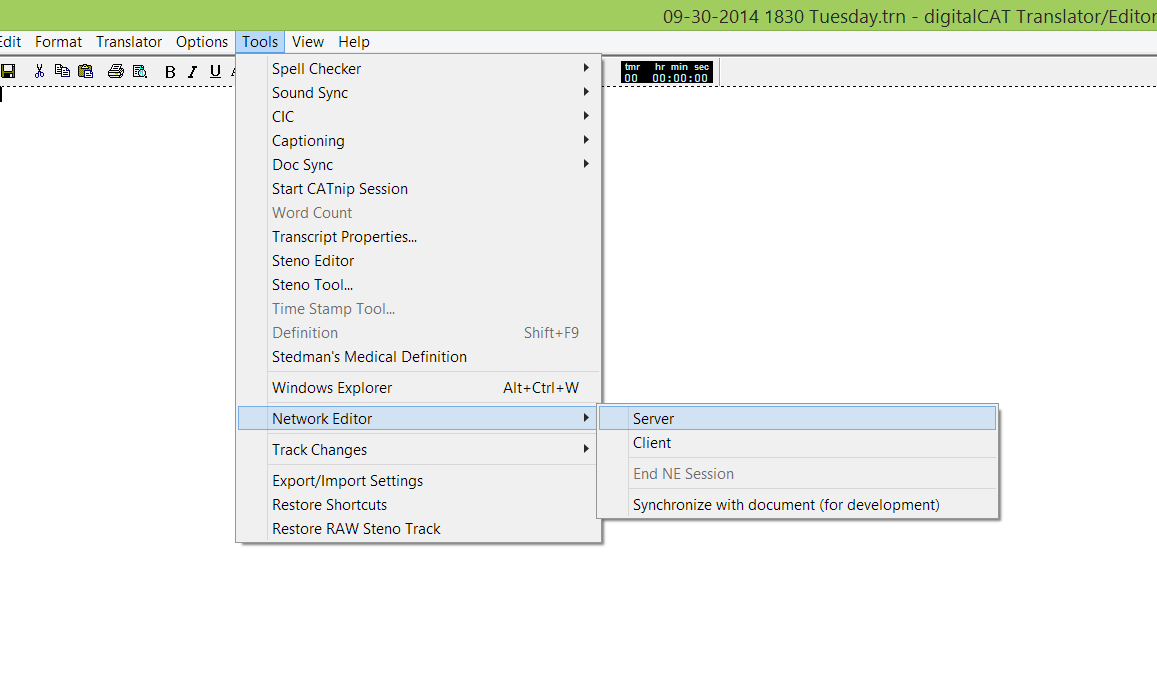
To configure server open Tools > Network Editor > Server dialog (Fig. 2.1.)
The following dialog will appear (Fig 2.2.)
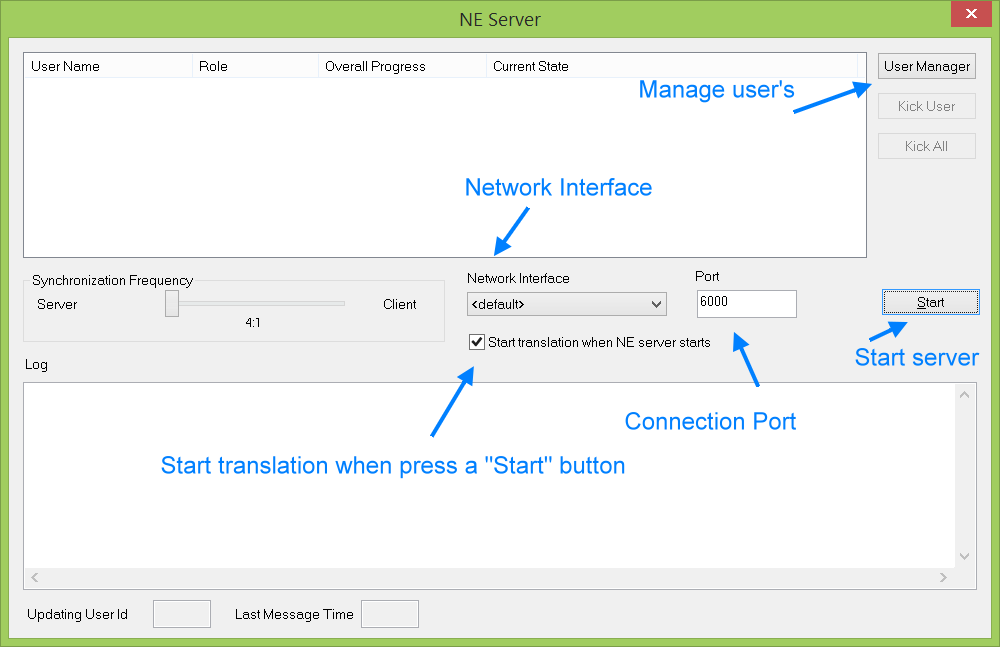
In most cases the only thing that request your attention is "User Manager" button that allows to configure access to a server. But you can always adjust server's parameters by the following options:
"Synchronization Frequency" means how often participants sending changes to each other. By default this is 4:1 meaning that changes doing by reporter (server) has highest priority. I.e. server sends information about changes four times and once get changes from each scopist. This was done because reporter doing the most changes in transcript, so providing him with priority will allow all participants to have the most up to date transcript, while scopist's changes will be provided with small delay.
"Network Interface" required only if you have any connection problems on computer with several network cards to select proper network card to bind to. In most cases "<default>" value should be OK.
"Port" is network port to connect to. I.e. to connect to server participants enter its address and connection port. There are few reasons to change it from default "6000" value, in case if administrator opened external port or there is any existing service on computer using port 6000, but in most cases you can left it without changes.
"Start translation when NE server starts" calls "Translator" > "Start Translation" just after you press a "Start" button to start NE session, it is turned ON by default
"User Manager" allows reporter to configure access to its computer. (Fig 2.3.)
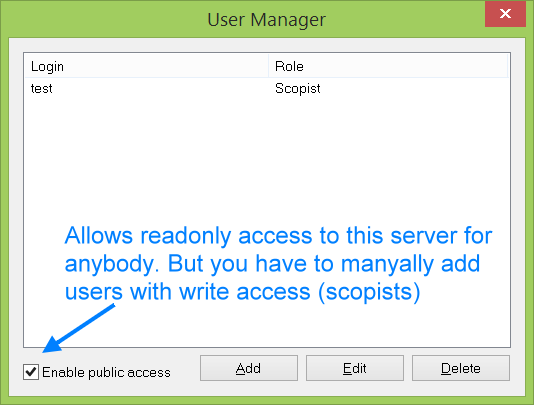
In this dialog you can create user accounts that will have access to your computer during realtime. There are two types of accounts available: "lawyer" that can only view transcript (readonly access) and "scopist" that can edit text in transcript.
It is recommended to keep "Enable public access" checkbox turned on, this allows users with any login/password connect to you computer in readonly (viewing) mode. So you can add only accounts for your scopists in this case, and provide attorneys just with address or your computer and port to connect.
If you don't want to allow public access to your computer turn off this option and add user accounts that required for connection.
Now you are ready to start, just press "Start" button to start network editor server.